> ## Documentation Index
> Fetch the complete documentation index at: https://docs.vuarchives.com/llms.txt
> Use this file to discover all available pages before exploring further.

# Pose Maker

> Create avatar poses and animations with ease — no 3D software required.
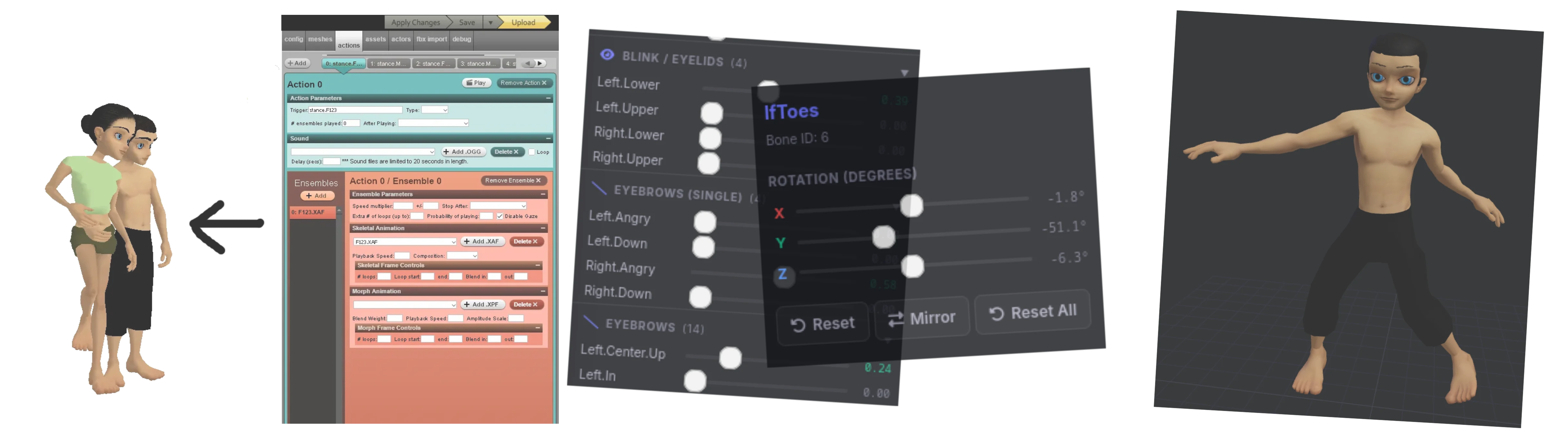
<img src="https://mintcdn.com/vuarchives/L-5WvbyD24W7C9xp/images/premium-tools/pose-maker/banner.png?fit=max&auto=format&n=L-5WvbyD24W7C9xp&q=85&s=a2a8efd89fc61f027fc6e4890706ddcd" alt="Pose Maker Examples" width="4863" height="1348" data-path="images/premium-tools/pose-maker/banner.png" />

<Tabs>
  <Tab title="Bones" icon="person-limbs-wide">
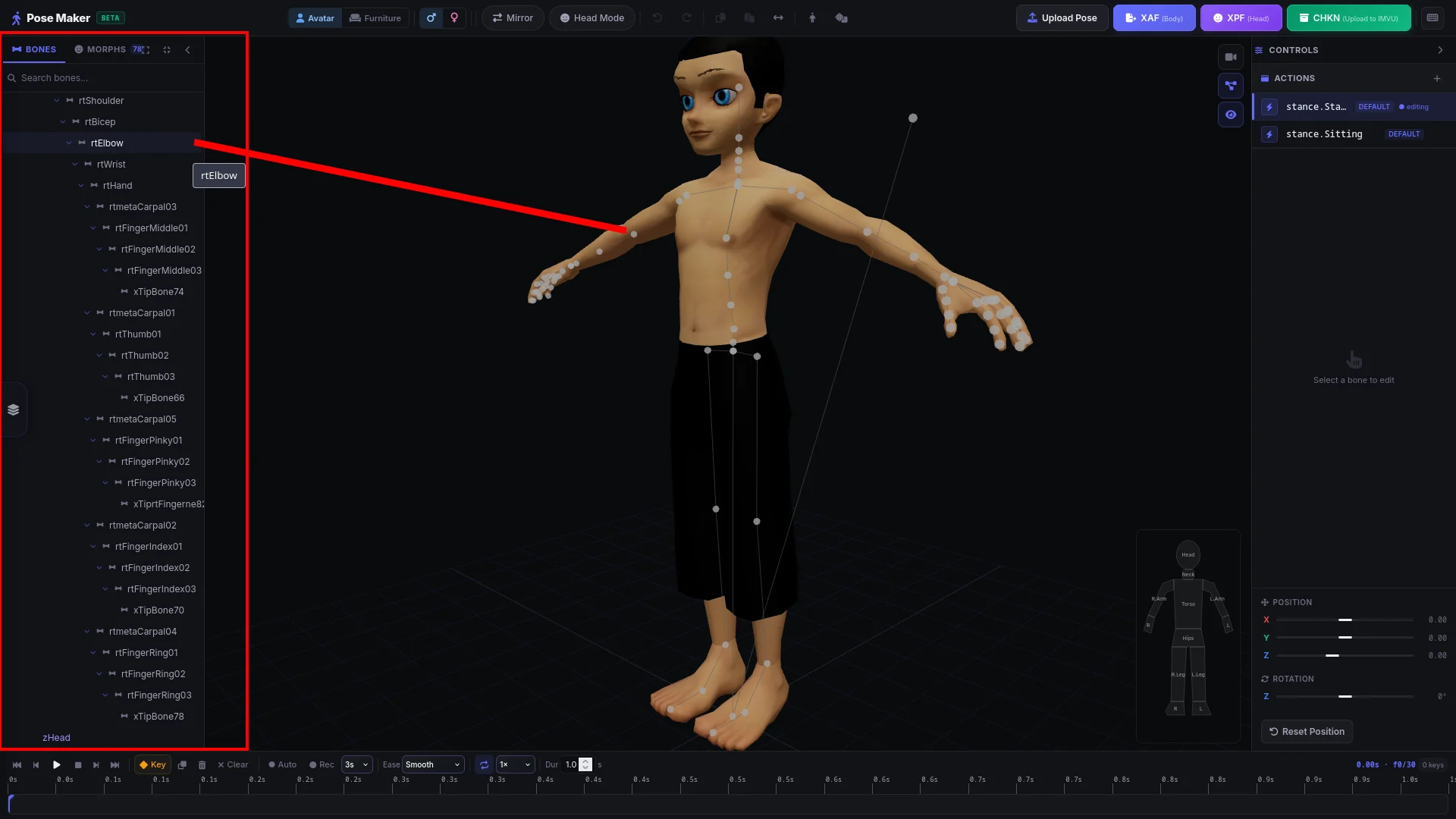
    Allows you to edit every single bone available to the body.
    <Frame caption="Overview">
      <img src="https://mintcdn.com/vuarchives/L-5WvbyD24W7C9xp/images/premium-tools/pose-maker/bones.png?fit=max&auto=format&n=L-5WvbyD24W7C9xp&q=85&s=c9472eb918b4775e82e6ebf4a8e08297" alt="" width="1920" height="1080" data-path="images/premium-tools/pose-maker/bones.png" />
    </Frame>
  </Tab>

  <Tab title="Morphs" icon="face-diagonal-mouth">
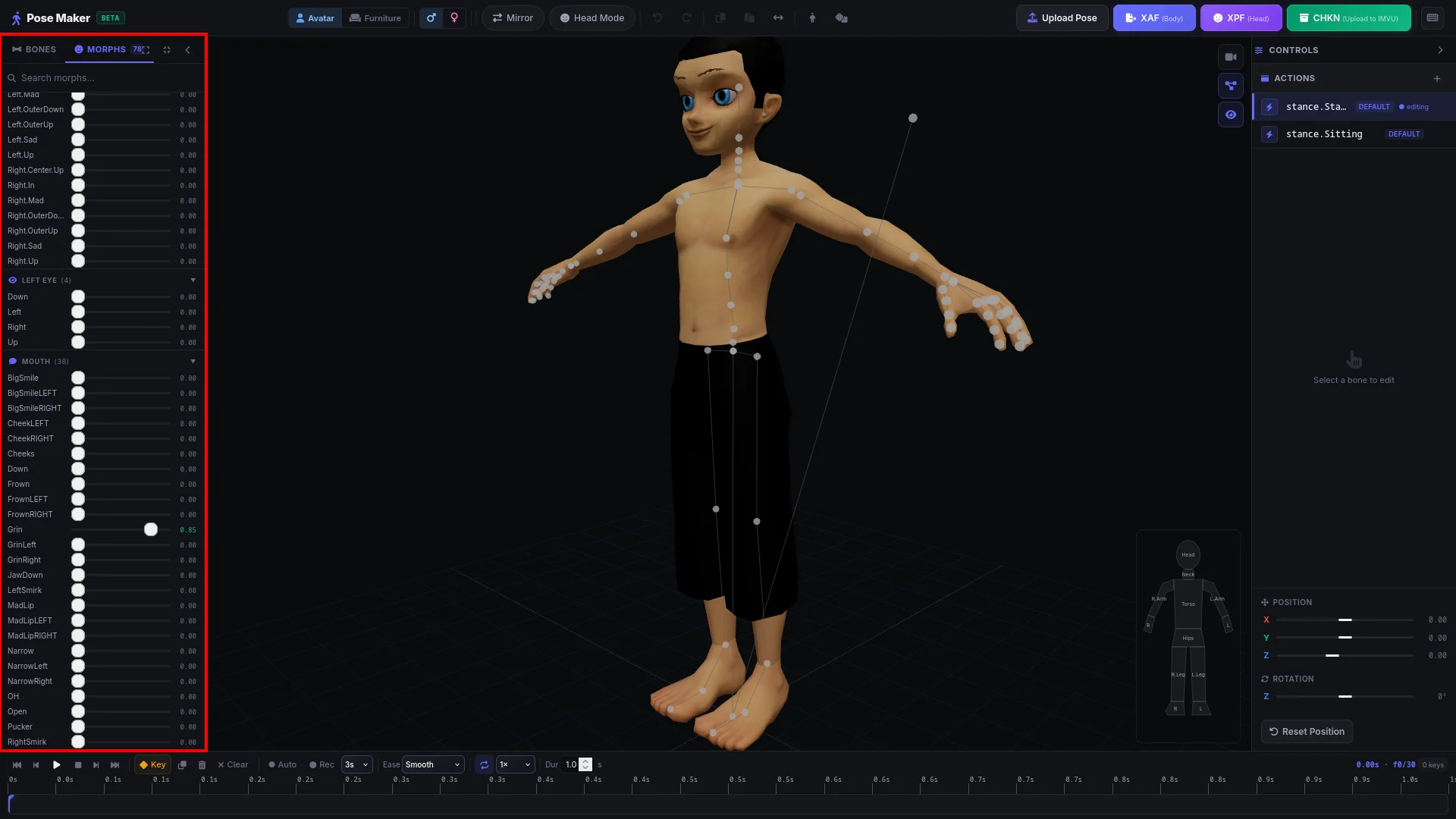
    Allows you to customize the avatar's face however you like — wacky, funny, or weird. Go ahead and have fun!
    <Frame caption="Overview">
      <img src="https://mintcdn.com/vuarchives/L-5WvbyD24W7C9xp/images/premium-tools/pose-maker/morphs.png?fit=max&auto=format&n=L-5WvbyD24W7C9xp&q=85&s=f1f53697b00ea01fe23eb38aabc2a633" alt="" width="1920" height="1080" data-path="images/premium-tools/pose-maker/morphs.png" />
    </Frame>

    *

    <Frame caption="Morphs demo">
      <video autoPlay src="https://mintcdn.com/vuarchives/L-5WvbyD24W7C9xp/images/premium-tools/pose-maker/faces-demo.mp4?fit=max&auto=format&n=L-5WvbyD24W7C9xp&q=85&s=83323c5b98d2eb4e8474063515165424" data-path="images/premium-tools/pose-maker/faces-demo.mp4" />
    </Frame>
  </Tab>

  <Tab title="Toggle Skeleton" icon="skull">
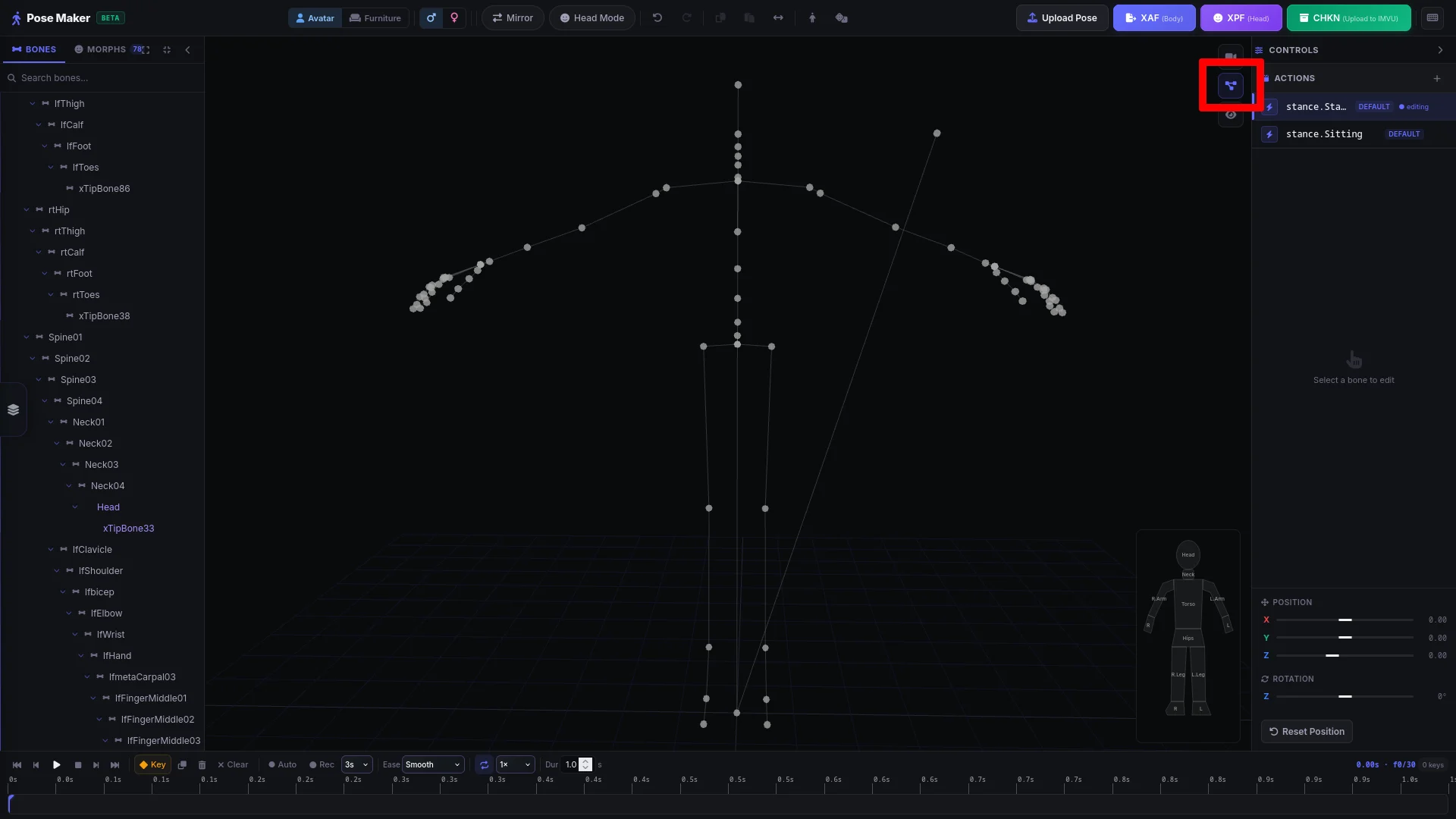
    Button to toggle the skeleton overlay on or off. When enabled, a skeleton outline is shown; when disabled, no skeleton outline is displayed.
    <Frame caption="Overview">
      <img src="https://mintcdn.com/vuarchives/L-5WvbyD24W7C9xp/images/premium-tools/pose-maker/toggle-skeleton.png?fit=max&auto=format&n=L-5WvbyD24W7C9xp&q=85&s=60403a8388acb3b8457b8b5fd78a2e12" alt="" width="1920" height="1080" data-path="images/premium-tools/pose-maker/toggle-skeleton.png" />
    </Frame>
  </Tab>

  <Tab title="Keyframes" icon="timeline">
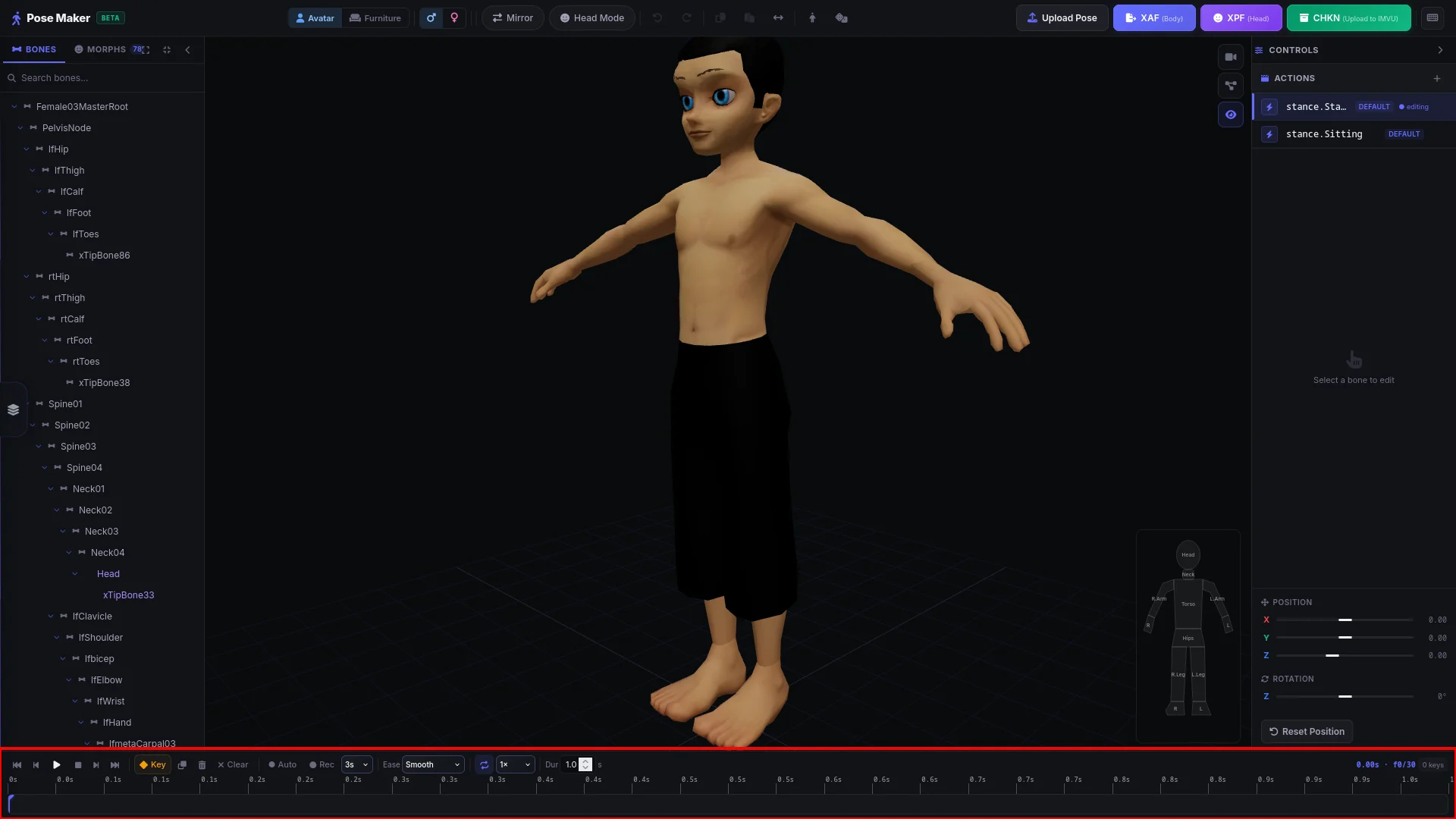
    This view highlights the keyframe timeline (red box). You can add or remove keyframes, then play or step through the timeline to see how the avatar animates. It helps you preview timing and detailed motion without writing code.

    Source: [What is keyframes?](https://www.adobe.com/creativecloud/video/discover/keyframing.html)
    <Frame caption="">
      <img src="https://mintcdn.com/vuarchives/L-5WvbyD24W7C9xp/images/premium-tools/pose-maker/keyframes.png?fit=max&auto=format&n=L-5WvbyD24W7C9xp&q=85&s=6f182b4fcbc9353b9d9207f1af06cd81" alt="" width="1920" height="1080" data-path="images/premium-tools/pose-maker/keyframes.png" />
    </Frame>

    *

    <Frame caption="Keyframes demo">
      <video autoPlay src="https://mintcdn.com/vuarchives/L-5WvbyD24W7C9xp/images/premium-tools/pose-maker/keyframes-demo.mp4?fit=max&auto=format&n=L-5WvbyD24W7C9xp&q=85&s=99854cfd2ee5ce77b48ec96fbaeced6c" data-path="images/premium-tools/pose-maker/keyframes-demo.mp4" />
    </Frame>
  </Tab>

  <Tab title="Avatar Position" icon="arrow-down-arrow-up">
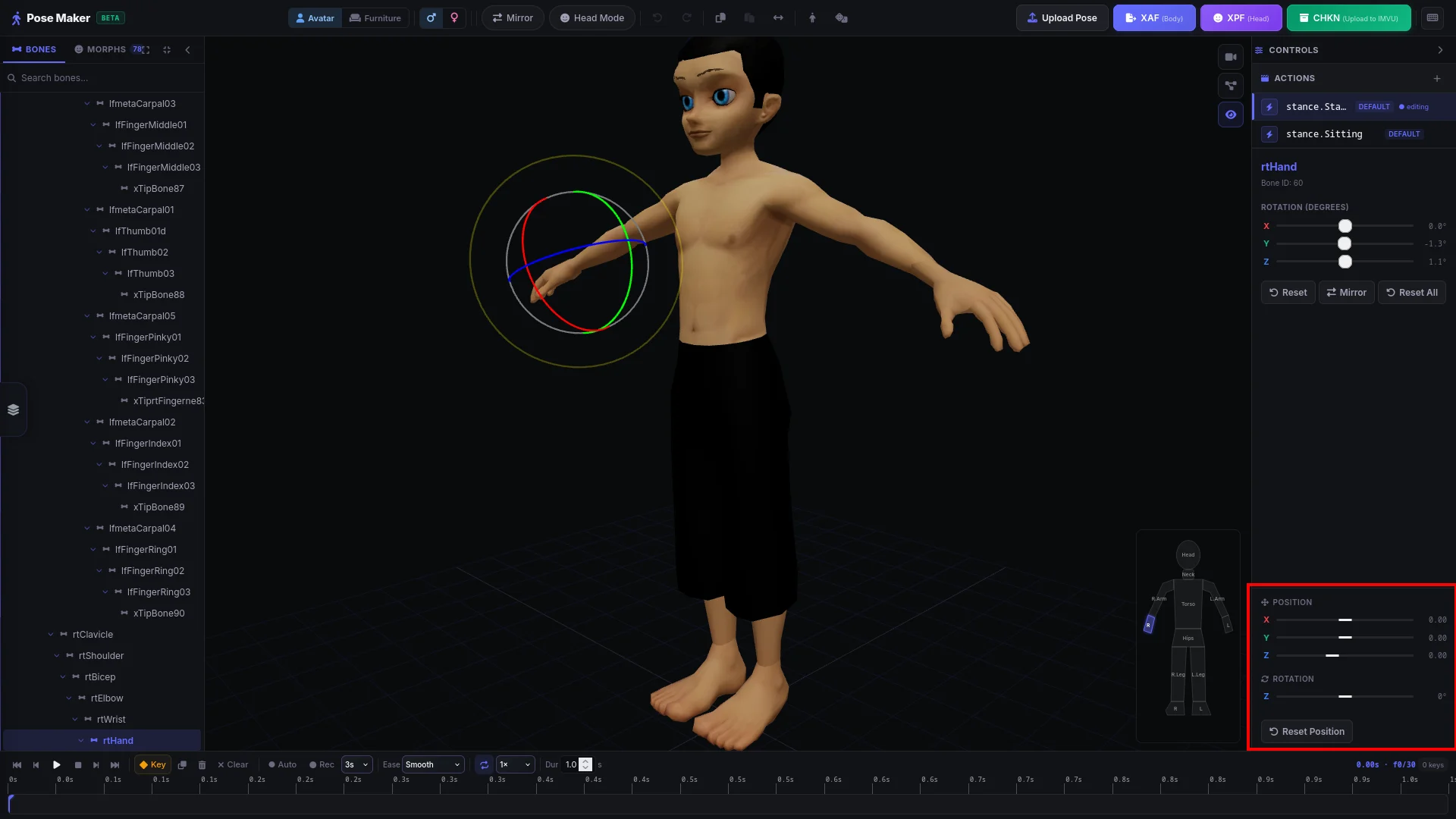
    Allows you to move the avatar in any direction including upside down — for full control over its orientation and posing.

    * <span style={{ color: "#f63b3b" }}>X</span> (left/right) moves the avatar left or right.
    * <span style={{ color: "#41f63b" }}>Y</span> (forward/back) moves the avatar closer or farther away.
    * <span style={{ color: "#3b67f6" }}>Z</span> (up/down) moves the avatar up or down.
    <br />

    <Frame caption="Overview">
      <img src="https://mintcdn.com/vuarchives/L-5WvbyD24W7C9xp/images/premium-tools/pose-maker/move-avatar.png?fit=max&auto=format&n=L-5WvbyD24W7C9xp&q=85&s=cefd694061388d9ae7d12c63eda5ade5" alt="" width="1920" height="1080" data-path="images/premium-tools/pose-maker/move-avatar.png" />
    </Frame>
  </Tab>

  <Tab title="Keyboard Shortcuts" icon="keyboard">
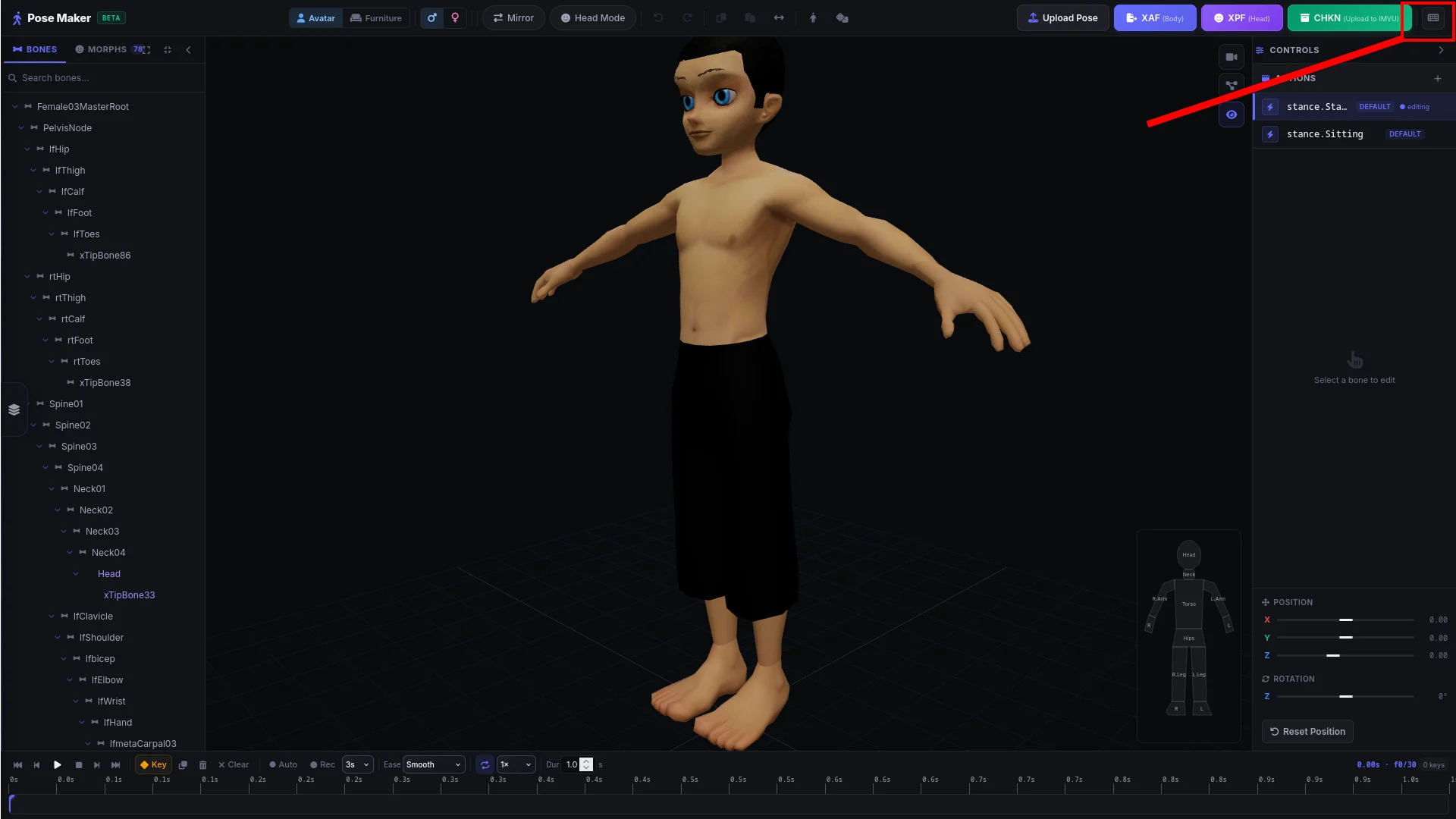
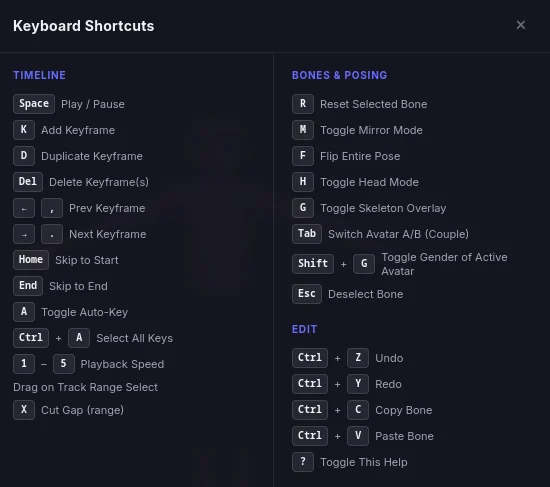
    See list of shortcuts by clicking the keyboard button on the top right or press Shift -> ? on your keyboard to bring up the modal
    <Frame caption="Overview">
      <img src="https://mintcdn.com/vuarchives/L-5WvbyD24W7C9xp/images/premium-tools/pose-maker/shortcut-button.png?fit=max&auto=format&n=L-5WvbyD24W7C9xp&q=85&s=3f8367ad4f7ee244e0dea0b6ab3209d5" alt="" width="1920" height="1080" data-path="images/premium-tools/pose-maker/shortcut-button.png" />

      <br />

      <img src="https://mintcdn.com/vuarchives/L-5WvbyD24W7C9xp/images/premium-tools/pose-maker/keyboard-shortcuts.png?fit=max&auto=format&n=L-5WvbyD24W7C9xp&q=85&s=856b2598c8bc51c8d4e6282e197e1d26" alt="" width="550" height="487" data-path="images/premium-tools/pose-maker/keyboard-shortcuts.png" />
    </Frame>
  </Tab>
</Tabs>
