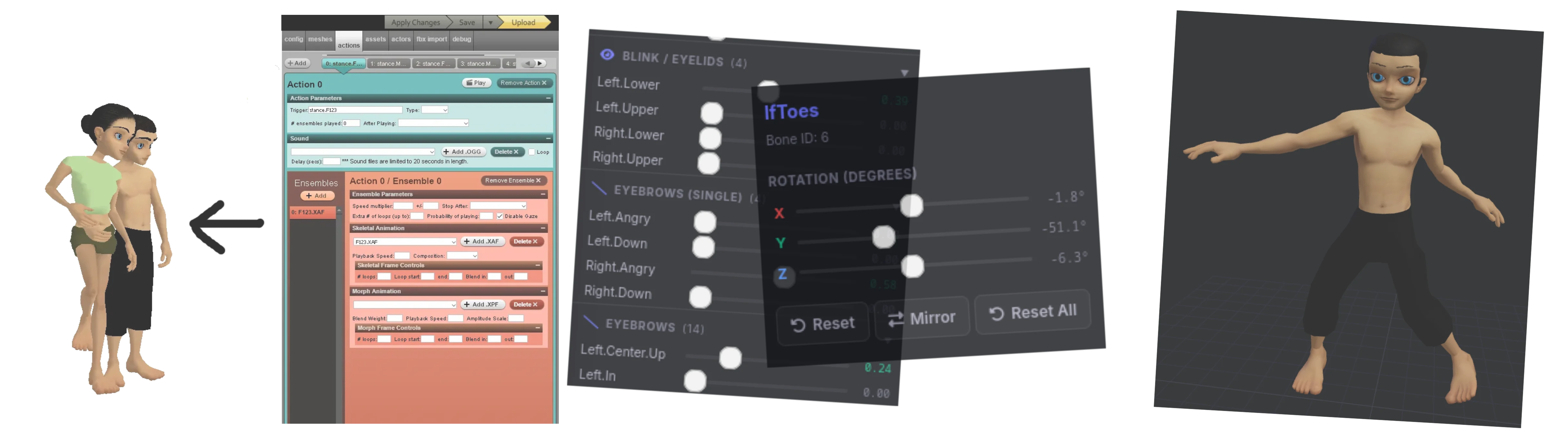
Create avatar poses and animations with ease — no 3D software required.
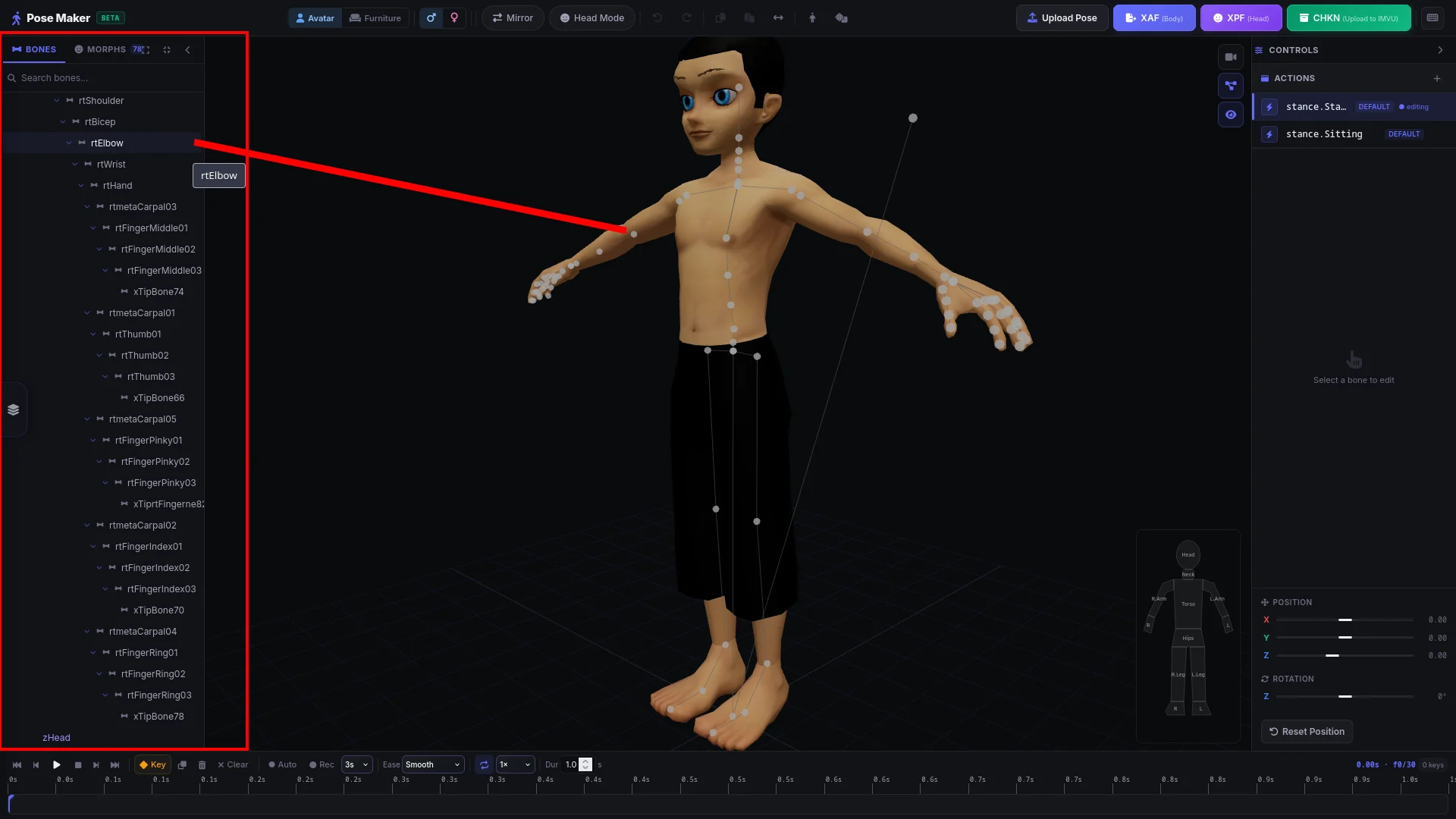
Bones
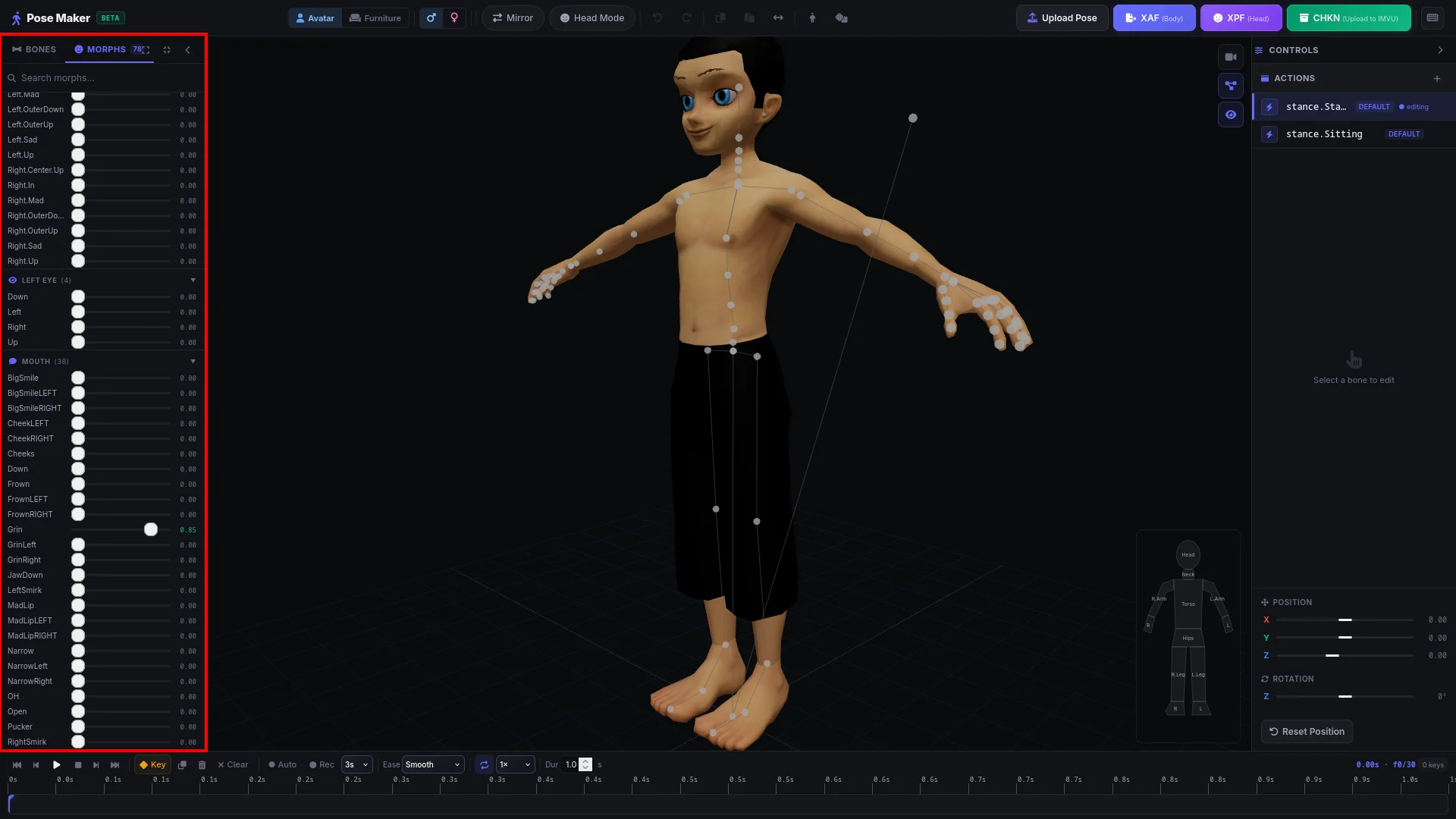
Morphs
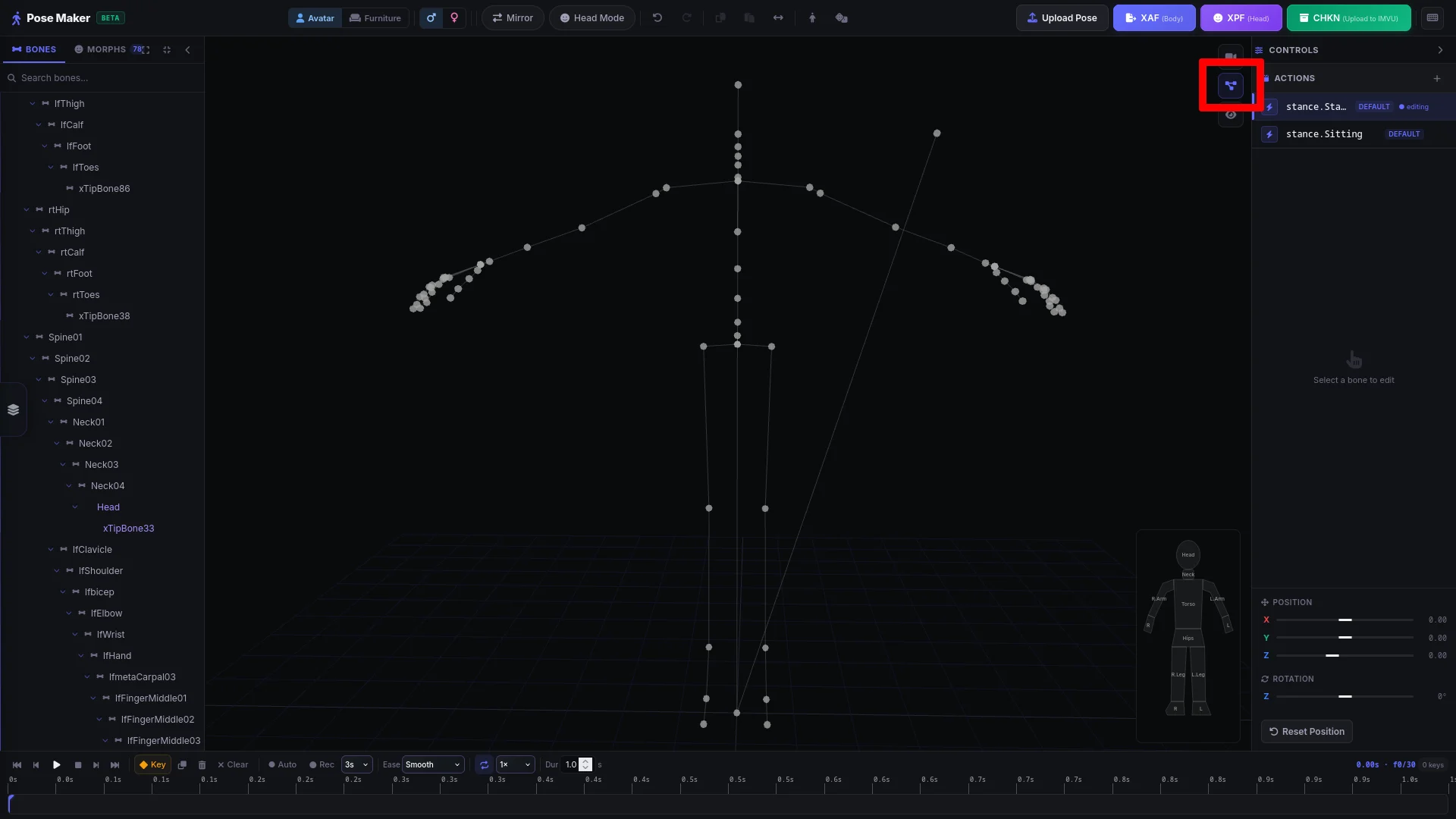
Toggle Skeleton
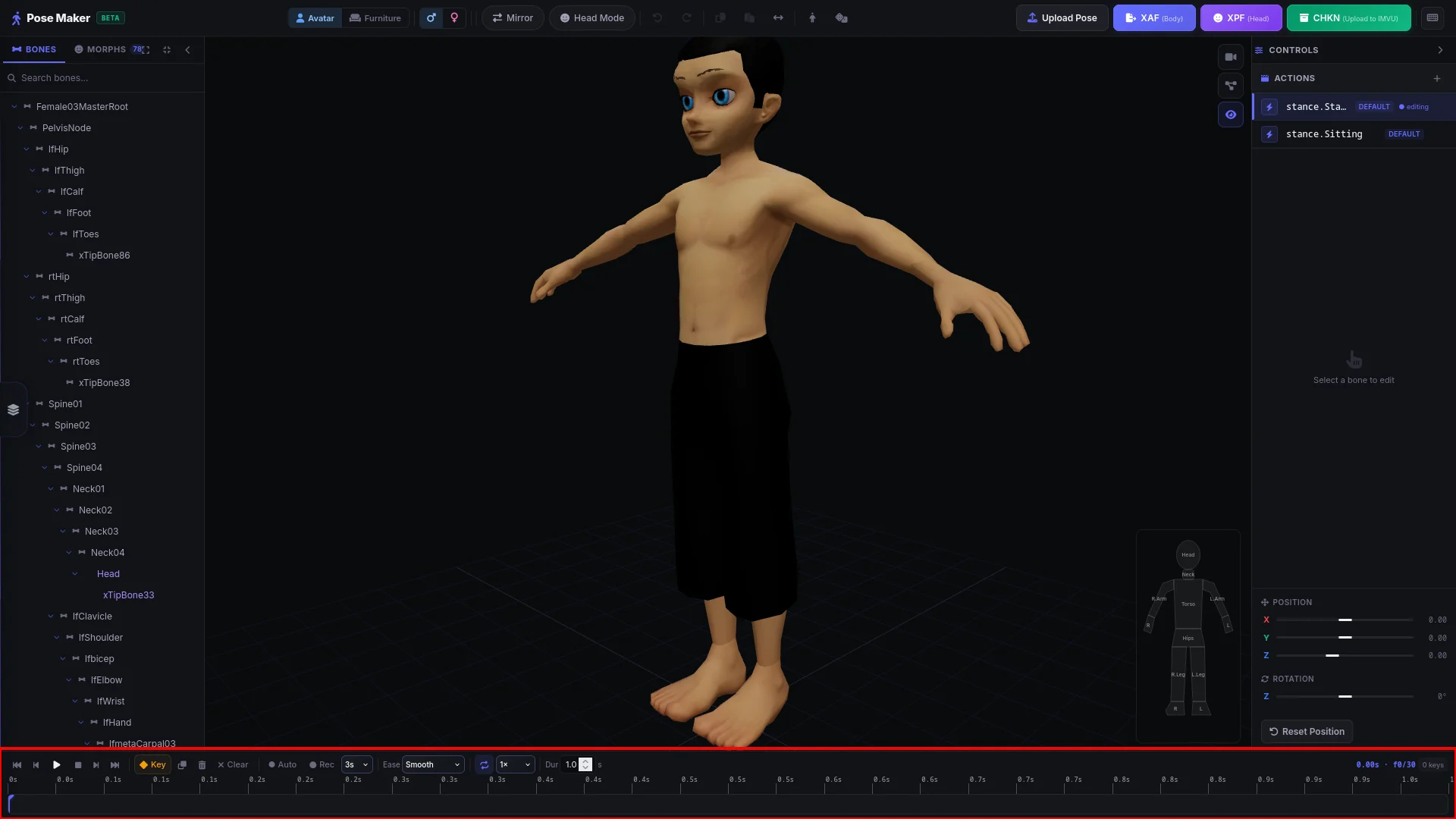
Keyframes
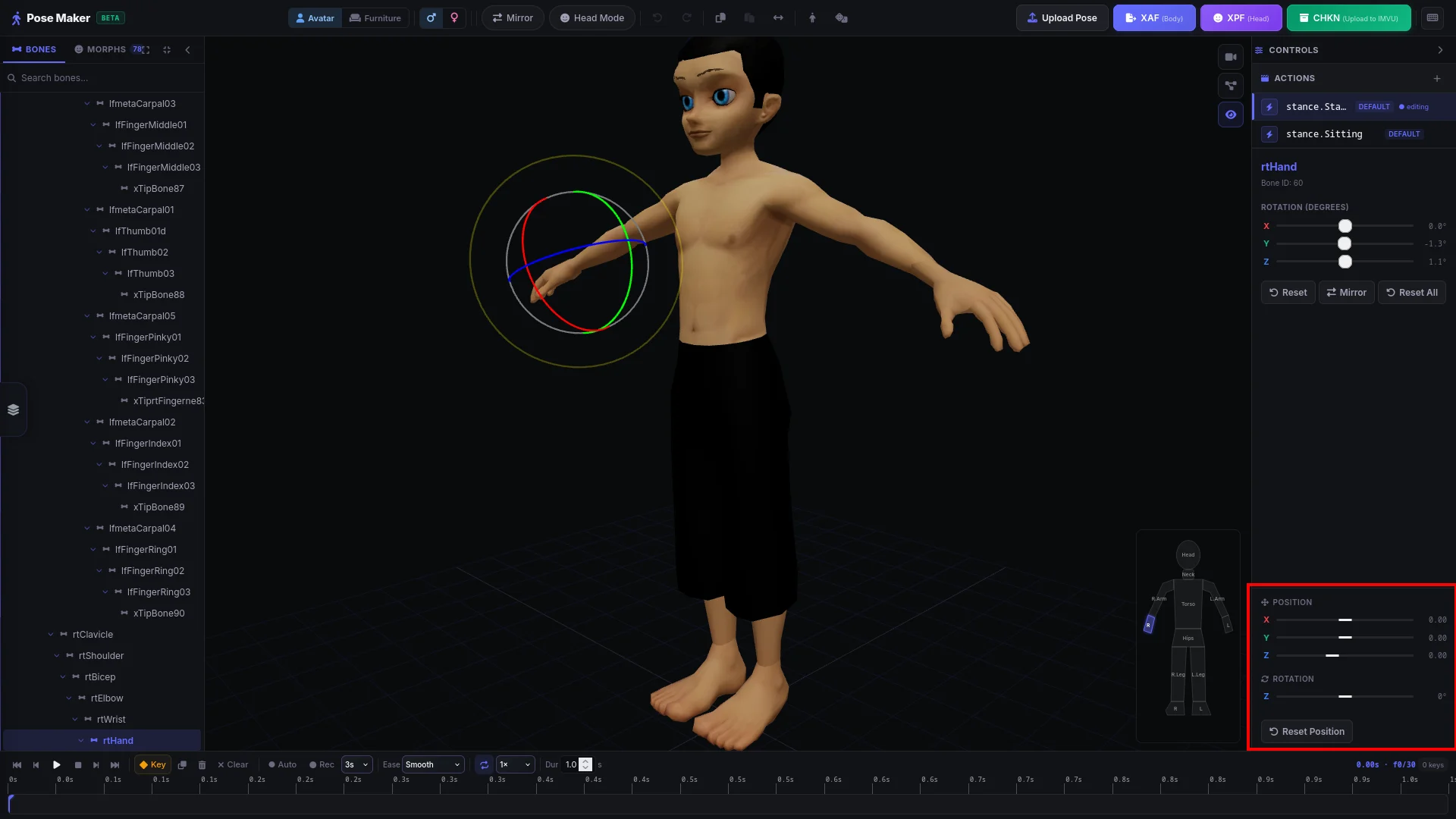
Avatar Position
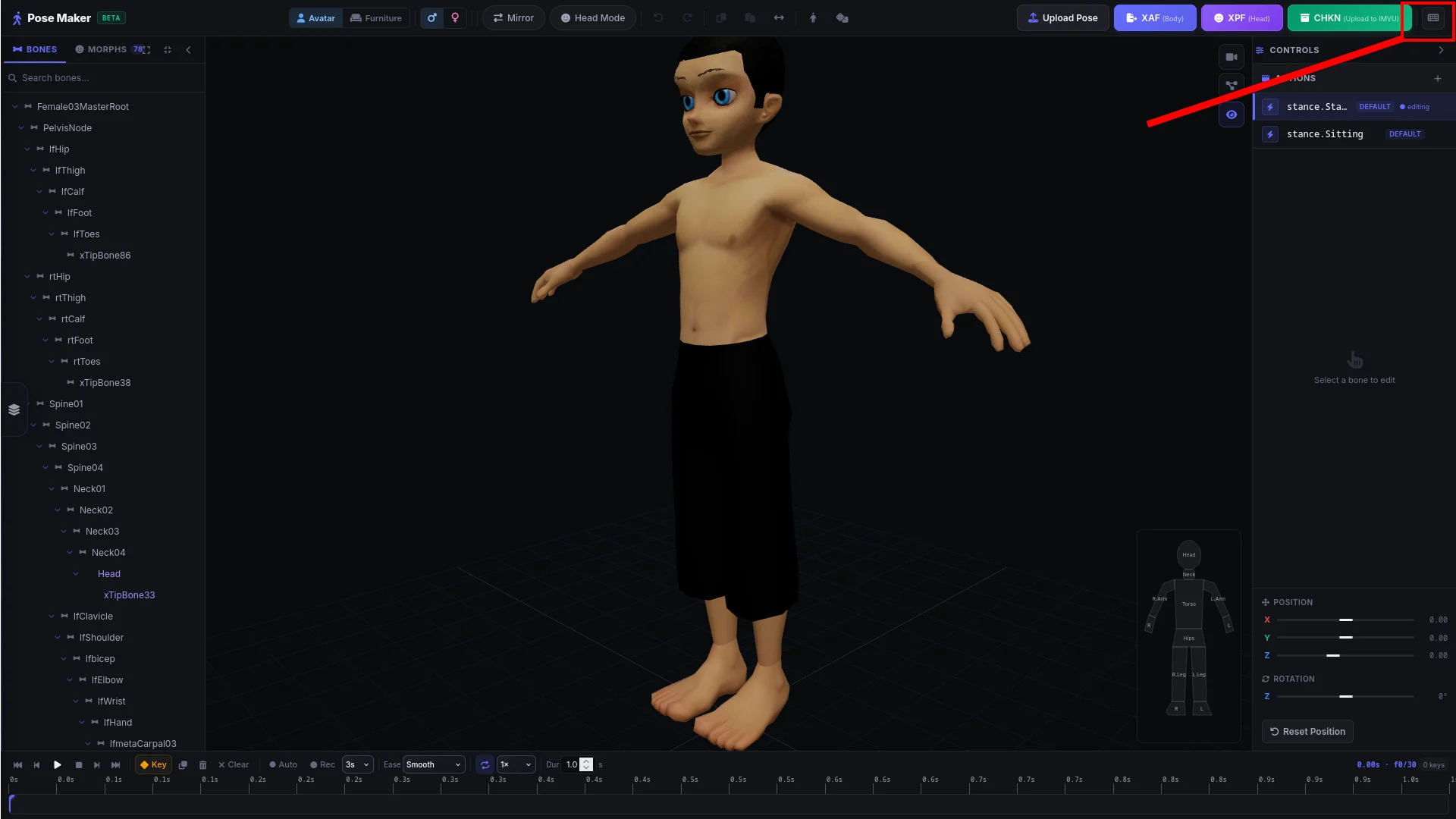
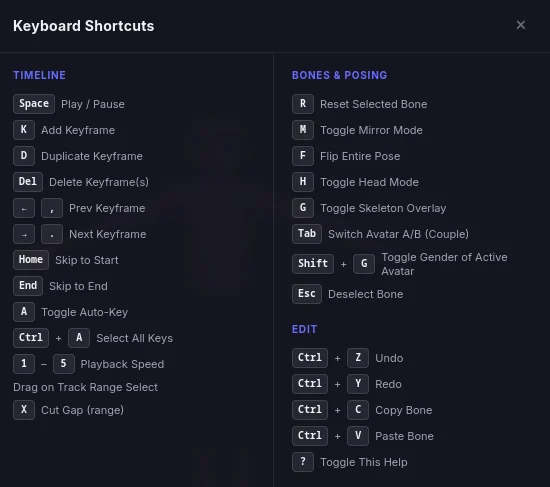
Keyboard Shortcuts
Allows you to edit every single bone available to the body.
Overview
Allows you to customize the avatar’s face however you like — wacky, funny, or weird. Go ahead and have fun!
Overview
Morphs demo
Button to toggle the skeleton overlay on or off. When enabled, a skeleton outline is shown; when disabled, no skeleton outline is displayed.
Overview
This view highlights the keyframe timeline (red box). You can add or remove keyframes, then play or step through the timeline to see how the avatar animates. It helps you preview timing and detailed motion without writing code.Source: What is keyframes?
Keyframes demo
Allows you to move the avatar in any direction including upside down — for full control over its orientation and posing.
X (left/right) moves the avatar left or right.
Y (forward/back) moves the avatar closer or farther away.
Z (up/down) moves the avatar up or down.
Overview
See list of shortcuts by clicking the keyboard button on the top right or press Shift -> ? on your keyboard to bring up the modal